
Call Parking allows you to place a caller into a shared parking slot so that the call can be retrieved later from your Sangoma Talk app or another authorized device.
Parking a Call
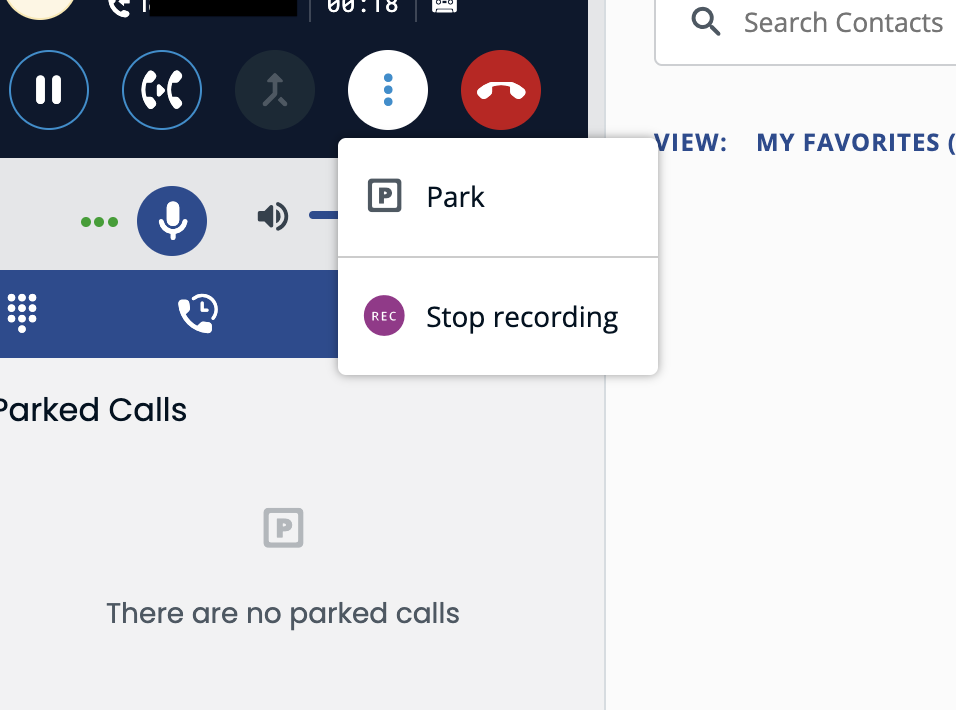
- While on an active call, click the More (⋮) menu.
- Select Park.
- The system will place the caller into an available park slot (next available in sequential order).
- Make note of the park slot number displayed (for example, Park 1, Park 2, etc.).
The caller will hear hold music while parked and will remain parked until retrieved from lot.
Retrieving a Parked Call
From the Sangoma Talk Desktop App
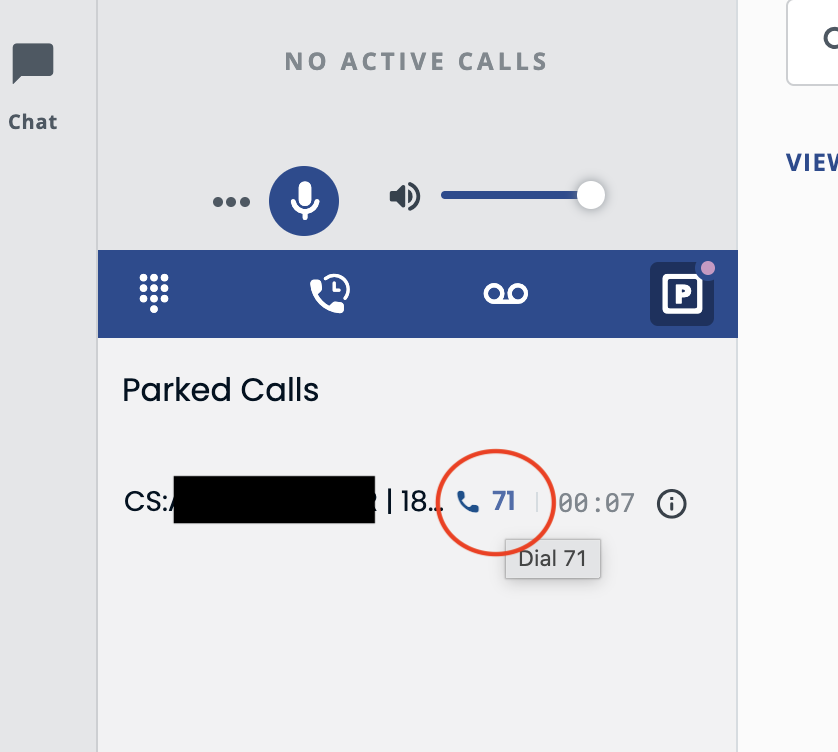
- Open the P for Park icon.
- Click the park slot number assigned (below is slot 71) to the caller (for example, Park 1).
The parked caller will immediately connect to your extension.
From a Desk Phone
If your Yealink phone has Park keys configured, simply press the illuminated park slot button to retrieve the call.
Alternatively, dial the park slot extension from the phone to retrieve the parked caller.
A caller can be parked from the Sangoma Talk Desktop App and retrieved from any authorized desk phone. For example, a receptionist can answer a call in the app and select Park, placing the caller into an available park slot. The corresponding Park button on a coworker's Yealink phone will illuminate, allowing them to simply press the Park key to retrieve and speak with the caller.
This makes it easy to hand off calls between team members without keeping the caller on hold or requiring multiple transfers.
Benefits of Call Parking
- Frees up your extension to answer additional calls.
- Allows any authorized team member to retrieve the caller.
- Reduces the need to leave callers on Hold while locating staff.
- Improves call handling during busy periods.
Tip: Call Parking is especially useful for receptionists and teams handling a high volume of incoming calls.