
If you’re planning to connect your Yealink phone wirelessly instead of using an Ethernet cable, it’s important to know whether your model:
✅ Has built-in Wi-Fi
? Requires a USB Wi-Fi dongle
❌ Does not support Wi-Fi at all
This guide explains how to quickly determine compatibility.
✅ Models with Built-In Wi-Fi (No Dongle Required)
Yealink models that include Wi-Fi hardware will have a “W” at the end of the model number.
Common Built-In Wi-Fi Desk Phones
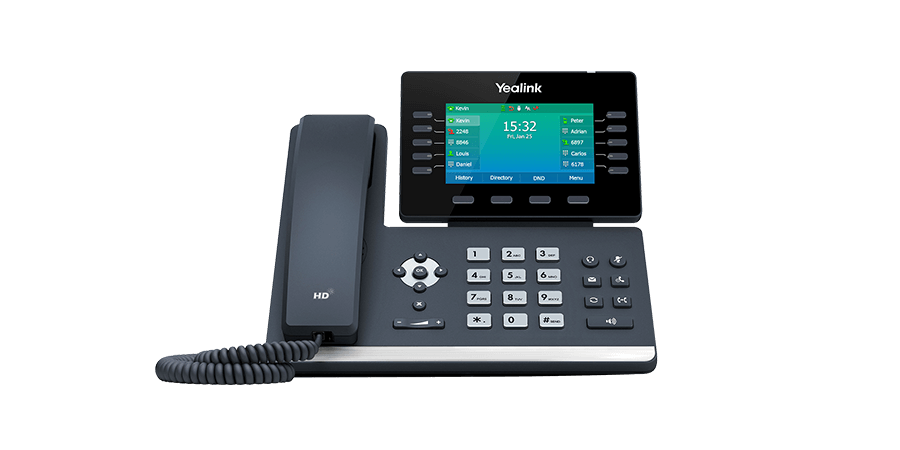
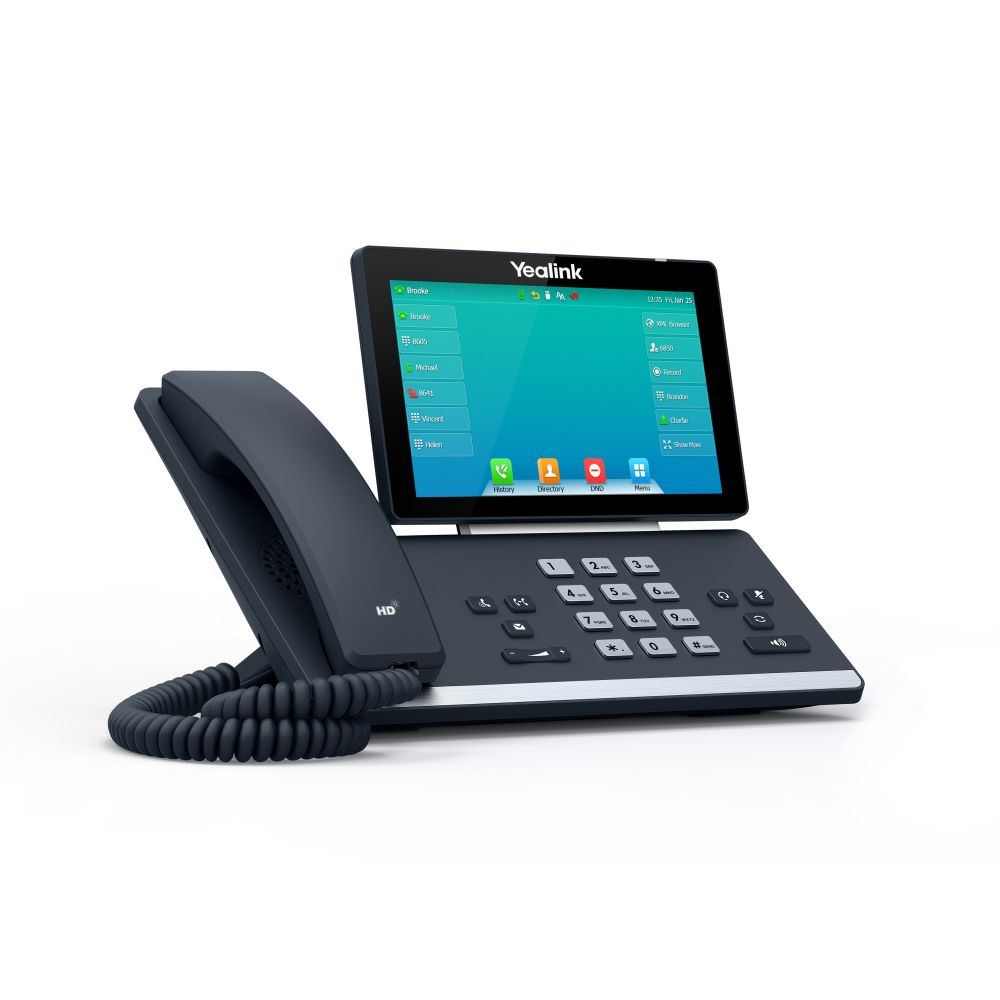
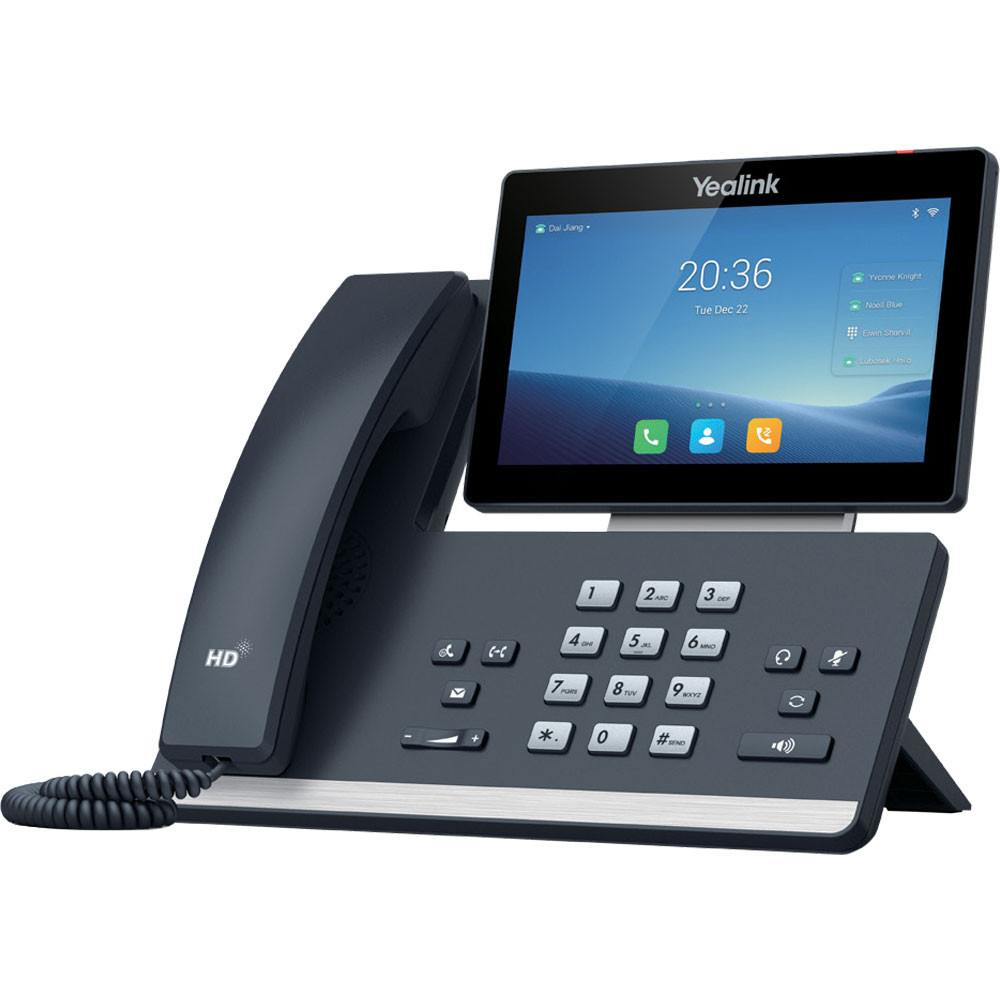
Yealink T31W
Yealink T34W
Yealink T44W
Yealink T53W/T54W/T57W/T58W/
Yealink T73W/T74W
Yealink T85W/T87W
Yealink VP59
Cordless: Yealink AX86R and AX83H
If the model ends in “W”, it includes:
Built-in 2.4GHz and/or 5GHz Wi-Fi
Built-in Bluetooth (most W models)
Conference Phones with Built-In Wi-Fi
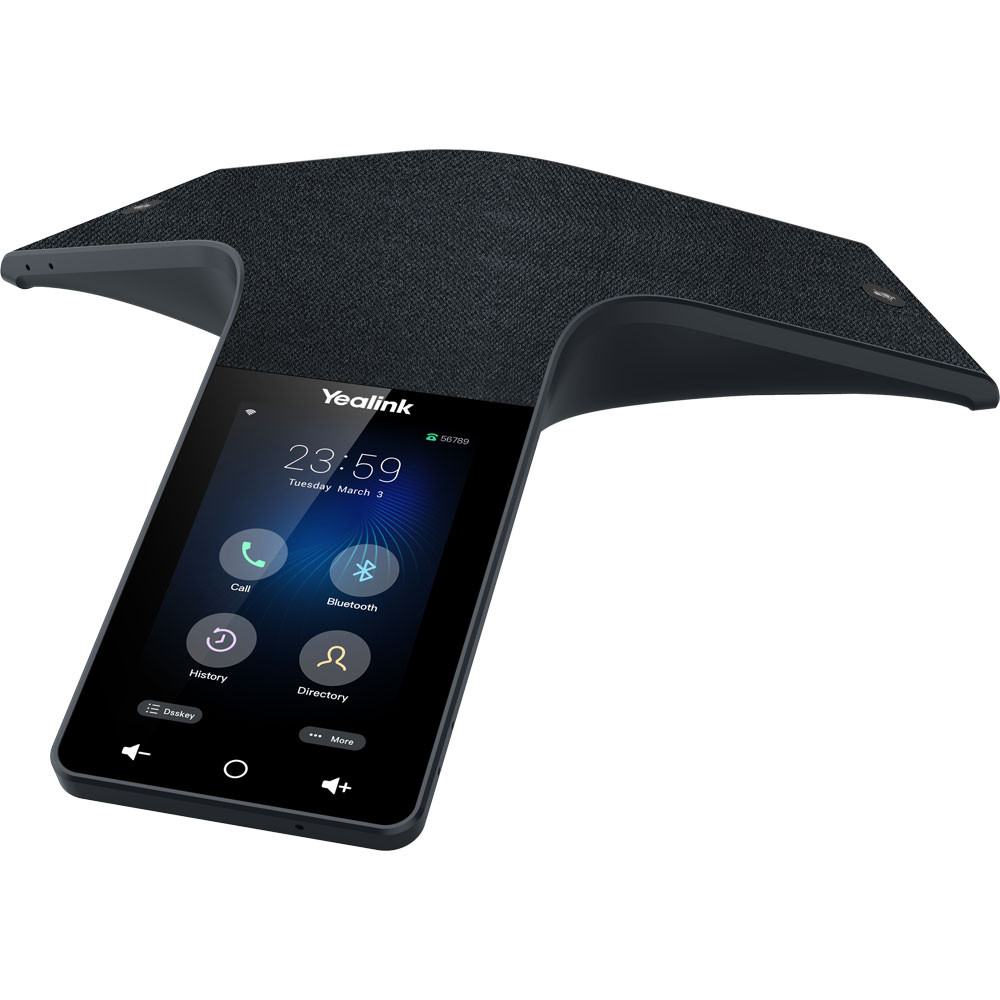
Yealink CP935W/Yealink CP965
? Models That Require a Wi-Fi Dongle
Phones that do NOT end in “W” typically require a Yealink USB Wi-Fi adapter.
Examples:
Yealink T44U/Yealink T46U
Yealink T53 (non-W version)
Older T4 and T5 series models
Compatible Wi-Fi Dongles:
Yealink WF40 (2.4GHz)
Yealink WF50 (Dual-band 2.4GHz / 5GHz)
? The dongle plugs into the USB port on the back of the phone.
Yealink IP phones (plug into a USB port on the phone):
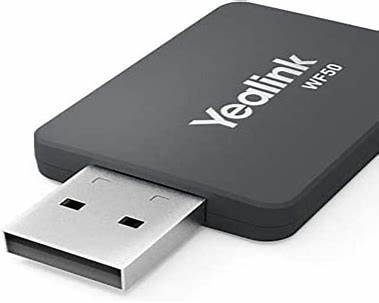
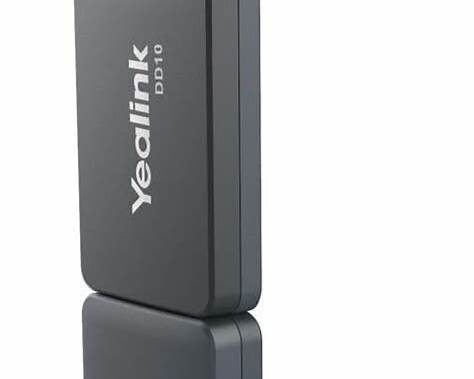
What you’re seeing
Yealink WF50 Dual-Band Wi-Fi USB Dongle — connects to 2.4 GHz and 5 GHz networks, supports more modern phones.
Yealink WF40 Wi-Fi USB Dongle — basic 2.4 GHz USB Wi-Fi adapter for older models.
? These dongles are plug-and-play — just insert them into the USB port on a supported Yealink phone and enable Wi-Fi from the phone’s menu (ensure the phone firmware supports Wi-Fi dongles).
❌ Models That Do Not Support Wi-Fi
Yealink T30
Yealink T31P/G
Legacy T2 series
These models must use a wired Ethernet connection.
? How to Tell If Your Phone Has Wi-Fi
Method 1: Check the Model Number
Look at the label on the back of the phone.
If it ends in “W” → Built-In Wi-Fi
If it does not → Likely requires a dongle
Method 2: Check the Phone Menu
On the phone screen:
Menu → Basic → Wi-Fi
If you see:
“Wi-Fi” option available → Wi-Fi supported
No Wi-Fi option → Not supported without a dongle
Method 3: Look for USB Port - located on the backside of the device.
If your phone has a USB port and does not have built-in Wi-Fi, it may support the WF40 or WF50 adapter.
⚠️ Important Notes
Wi-Fi performance depends heavily on signal strength and network stability.
For best call quality, wired Ethernet is always recommended when possible.
If using Wi-Fi, ensure:
Strong signal (3+ bars)
No captive portal (hotel Wi-Fi often blocks VoIP)
Firewall allows SIP traffic
Need help? If you are unsure about your model, please provide the exact model number from the back label and we’ll confirm compatibility. Please email support@soundcurve.com for to get immediate assistance.